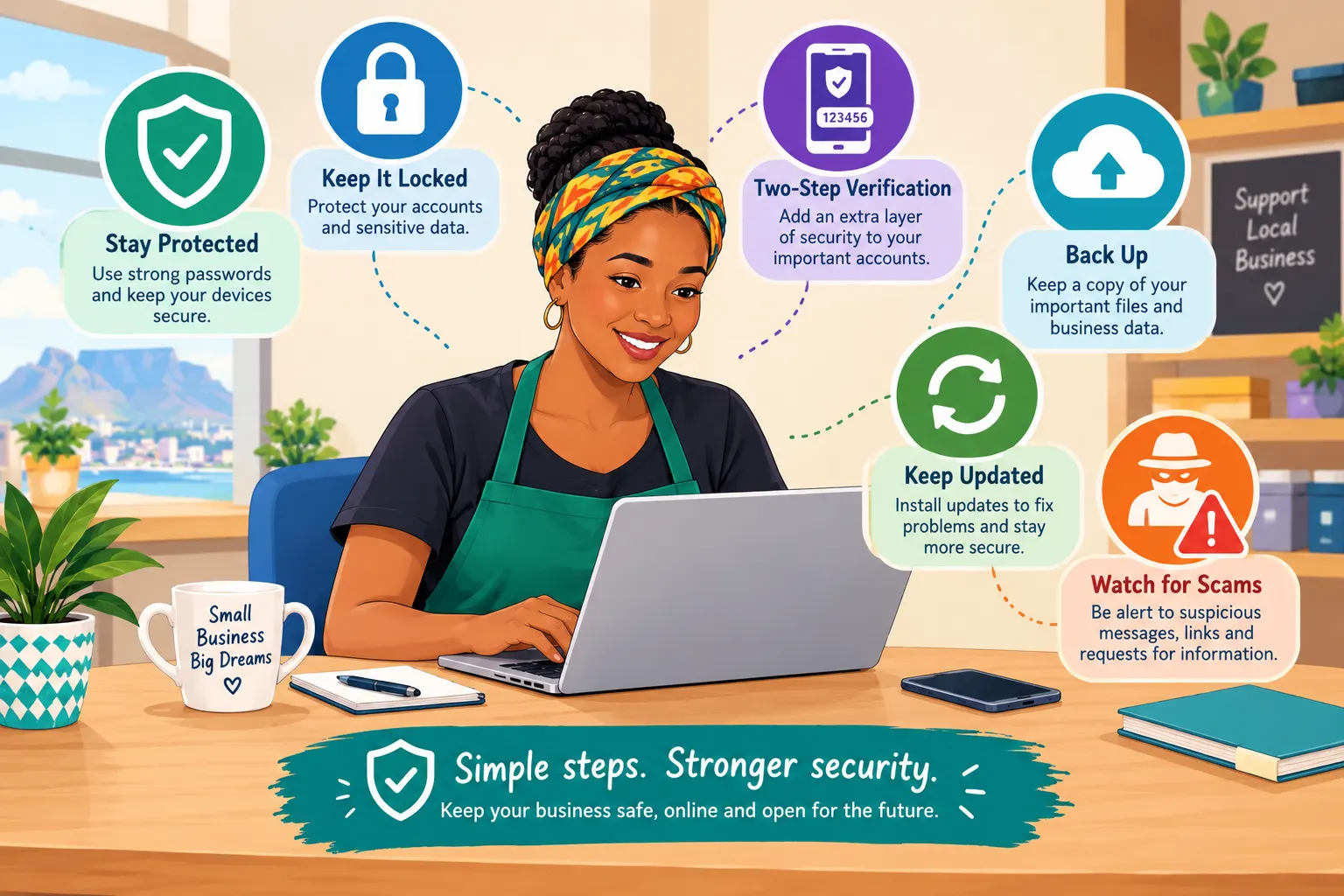
A good online presence is not finished when the website goes live. It needs basic protection and regular maintenance.
You do not have to become a cybersecurity expert. You do need a few good habits.
What you are trying to achieve
The aim is to protect the accounts, website, customer information and digital assets that your business depends on.
Good security is not about making everything complicated. It is about reducing avoidable risks and making sure someone is responsible for maintaining the important parts of your online presence.
1. Protect Your Main Email Account
Your main business email can be the key to resetting passwords for your website, social accounts, Google Business Profile and other services.
Protect it carefully.
- Use a strong, unique password.
- Turn on two-step verification where available.
- Do not share the password with staff through WhatsApp.
- Keep recovery details current.
- Review account access when someone leaves the business.
What to do now
Check the security settings for your main business email account.
Make sure two-step verification is enabled where available and that the recovery email address or telephone number is still correct.
2. Stop Reusing Passwords
If the same password is used for email, website administration and other services, one stolen password can put multiple accounts at risk.
Use a reputable password manager or another secure method for keeping unique passwords.
You do not need to memorise every password yourself. The important thing is that important accounts do not all depend on the same password.
What to do now
Make a list of your most important online accounts.
Start with your main email, website administration, domain account, hosting account, Google Business Profile and other accounts that could affect your business.
Identify any accounts that use the same password and replace those passwords with unique ones.
3. Watch for Scams
Small businesses are frequently approached by people claiming to be from Google, banks, domain companies, hosting providers, delivery companies or government organisations.
A message that creates panic and demands immediate payment deserves extra caution.
- Do not click unexpected login links.
- Check the sender and website address carefully.
- Do not give a verification code to someone who phones you unexpectedly.
- If unsure, contact the organisation through its official website or known telephone number.
- Do not allow remote computer access to an unknown person.
What to do now
The next time you receive an unexpected message about your website, domain, bank account or online advertising, stop before clicking anything.
Check who sent it and contact the organisation using a trusted contact method if you are unsure.
Cape Portal Tool: Phishing Link & URL Safety Checker
Use the Phishing Link & URL Safety Checker when you are unsure about a website address or link.
A tool can provide useful information, but it should not replace common sense. If a message is unexpected and asks for passwords, payment or verification codes, treat it carefully.
4. Keep the Website Updated
If you use WordPress or another website system, keep the core software, themes and plugins maintained.
Remove software you no longer use.
Before major changes, make sure you have a current backup.
If you are not comfortable doing technical maintenance, use a trusted website professional. The important thing is that someone is responsible for it.
What to do now
Log in to your website administration area and check whether important software updates are waiting.
Do not update everything blindly. Make sure you have a current backup and, where appropriate, check that important plugins and themes remain compatible.
Remove software that you no longer need.
Cape Portal Tool: Website Security & Health Checker
Use the Website Security & Health Checker to look for important website, security, technical and SEO signals that may need attention.
If you do not understand a technical result, you do not have to fix it yourself. Use the result to identify something that may need attention from your web professional.
5. Back Up What You Cannot Afford to Lose
A website backup is not enough if your important customer records, photographs, quotes and documents exist only on one computer.
Keep important information backed up in a sensible location and make sure you can actually restore it.
Important information may include:
- Website files and database
- Business documents
- Customer and job records
- Important photographs
- Marketing assets
- Critical configuration information
What to do now
Think about what information would cause serious problems if your computer or website suddenly failed.
Make sure those files exist somewhere other than the original device.
If you rely on website backups, check that the backups are actually being created and that you know how they would be restored.
6. Respect Customer Information
South African businesses should take privacy seriously.
Only collect customer information that you have a genuine reason to use, protect it, limit access and avoid keeping information indefinitely without a business need.
For privacy-law requirements, use current guidance from the Information Regulator or a qualified adviser rather than relying on an old internet article.
What to do now
Look at the customer information your business currently stores.
Ask:
- Do we still need this information?
- Who can access it?
- Where is it stored?
- Is it protected?
- Do we have a reason to keep it?
Do not keep sensitive customer information simply because you have always kept it.
Cape Portal Tool: Website Privacy & Tracker Inspector
Use the Website Privacy & Tracker Inspector to see what tracking technologies are running on your website.
The result can help you identify what your website is doing, but privacy and legal requirements may require professional advice depending on your business and how you process personal information.
7. Do a Monthly Digital Check-Up
Once a month, spend about 30 minutes checking the basics.
Ask:
- Can customers reach the website?
- Does the phone number work?
- Does the WhatsApp button work?
- Are opening hours correct?
- Are important Google Business Profile details correct?
- Are there new customer reviews to answer?
- Are website backups working?
- Are software updates pending?
- Are there unknown users or administrators?
- Are domain and hosting renewals under control?
You do not need to wait until something goes wrong before checking these things.
A short monthly check can help you find problems while they are still small.
Cape Portal Tools That Can Help
- Cape Portal Website Speed Checker — check whether your website is fast, could be faster or slow.
- Website Security & Health Checker — check important website and security signals.
- Universal Domain Expiry & Renewal Tracker — help keep track of important domain renewal dates.
- Email & Deliverability Checker — check important email and domain-related signals.
- IP & Domain Reputation Checker — check domain or IP reputation information where relevant.
- Phishing Link & URL Safety Checker — check suspicious links before interacting with them.
What to do now
Put a recurring reminder in your calendar for your monthly digital check-up.
Use the same checklist each month so that important items do not get forgotten.
Chapter 4 Action Plan
Work through this checklist to protect and maintain your online presence.
My digital safety checklist
☐ I have secured my main business email account.
☐ Two-step verification is enabled where available.
☐ My email recovery details are current.
☐ I have stopped reusing important passwords.
☐ I use a secure method for managing unique passwords.
☐ I know who has access to my important business accounts.
☐ I review account access when someone leaves the business.
☐ I know how to recognise suspicious messages and unexpected login requests.
☐ I have checked that my website software is being maintained.
☐ I have removed unused website software where appropriate.
☐ I have a current website backup.
☐ I know where important business documents and photographs are backed up.
☐ I know how important information would be restored if something went wrong.
☐ I have reviewed who can access customer information.
☐ I have considered whether I still need the customer information I keep.
☐ I have put a monthly digital check-up in my calendar.
☐ I am keeping domain, hosting and other important renewal dates under control.
☐ I know where to get professional help if I find a technical or security problem I cannot safely fix myself.
Use the Tools — Then Take Action
Cape Portal tools are designed to help you find problems and make everyday online tasks easier. A tool result is not the end of the process.
Check it. Understand it. Fix what you can. Then check again.
If a security or website tool identifies something you do not understand, do not make random changes just to make the result disappear. Find out what the issue means or ask a trusted website professional for help.
If you check a suspicious link, do not assume that a tool result gives you permission to ignore other warning signs.
If you discover that your website needs maintenance, make sure someone takes responsibility for fixing it.
If you create a backup, make sure you can actually restore it.
You do not need to become a cybersecurity expert. You need a few good habits, a simple process and someone responsible for the important parts of your digital presence.
The goal is not perfect security. The goal is to reduce avoidable risks, protect important information and keep your online presence working.
Chapter 4 complete?
Once you have worked through the checklist, you have completed the four main parts of the Cape Portal Small Business Guide:
Get Found → Turn Visitors Into Enquiries → Make Your Business Easier to Manage → Keep Your Business Safe
Your online presence is not a once-off project. Keep checking, improving and maintaining it as your business changes.
The tools can help you check. The action you take is what makes the difference.